Click Squad Full Onboarding Guide
Meta ยท Option A
Create Your Business Manager
- Estimated time: 5-10 minutes
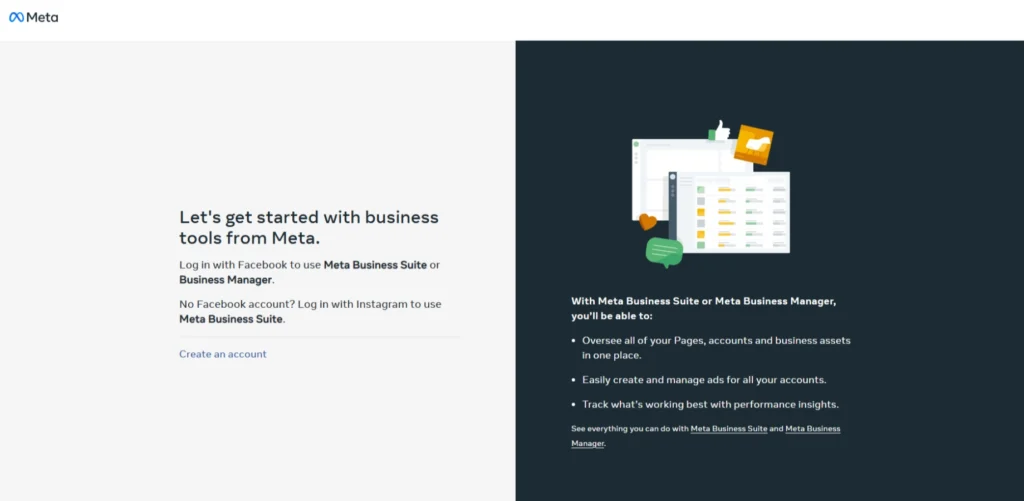
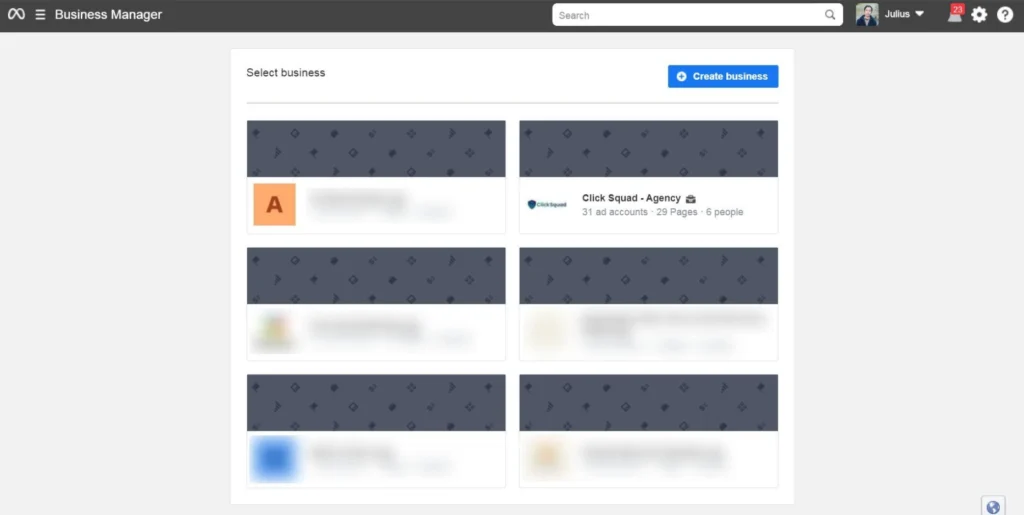
1 Click the link below to open the Business Manager setup page
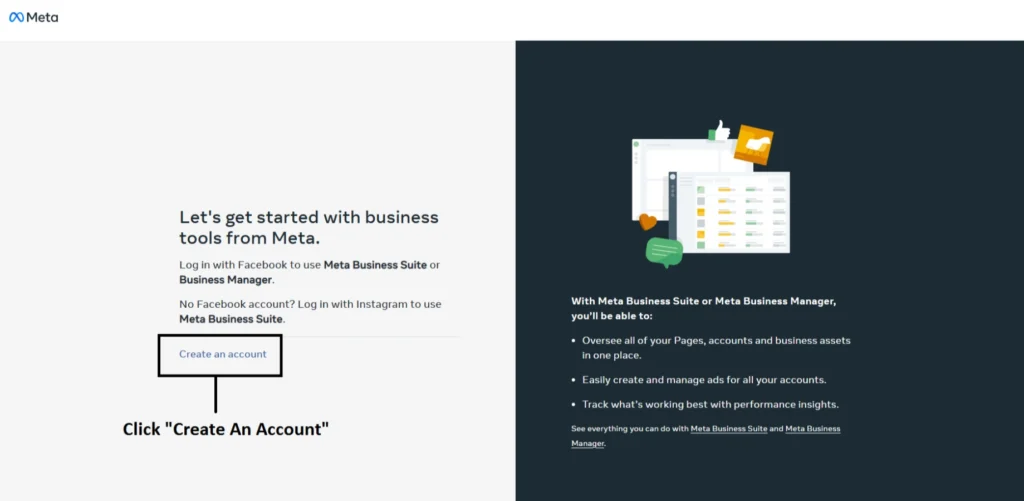
2 Click "Create an Account"
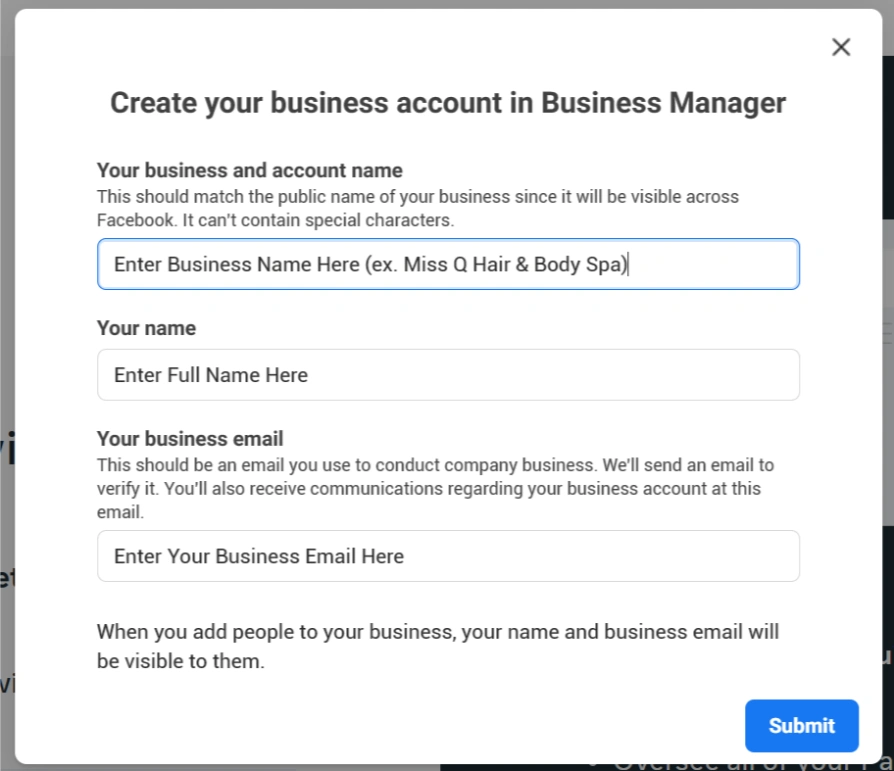
3 Fill in your business details in the popup window
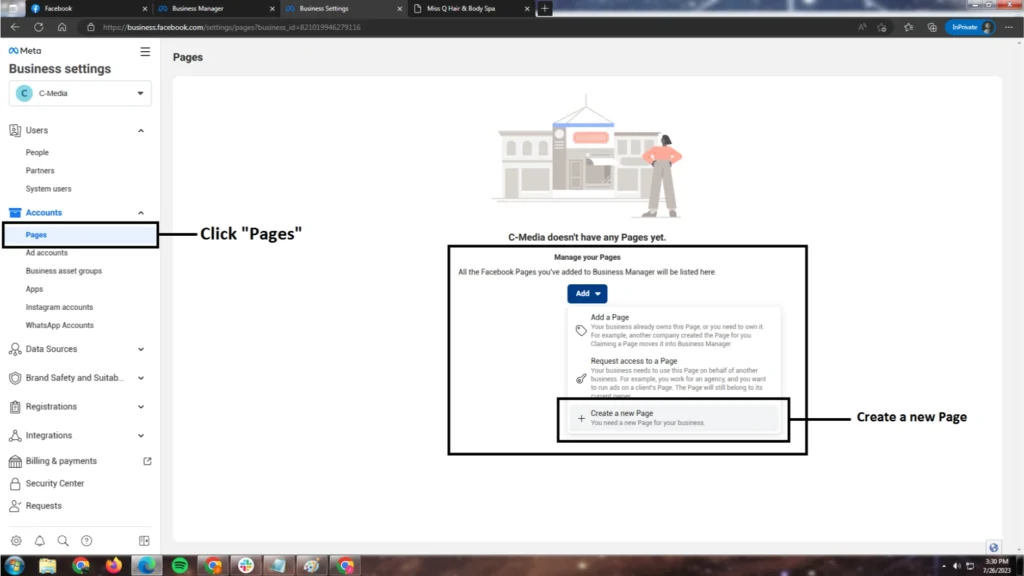
4 Add your existing Facebook Business Page or create a new one
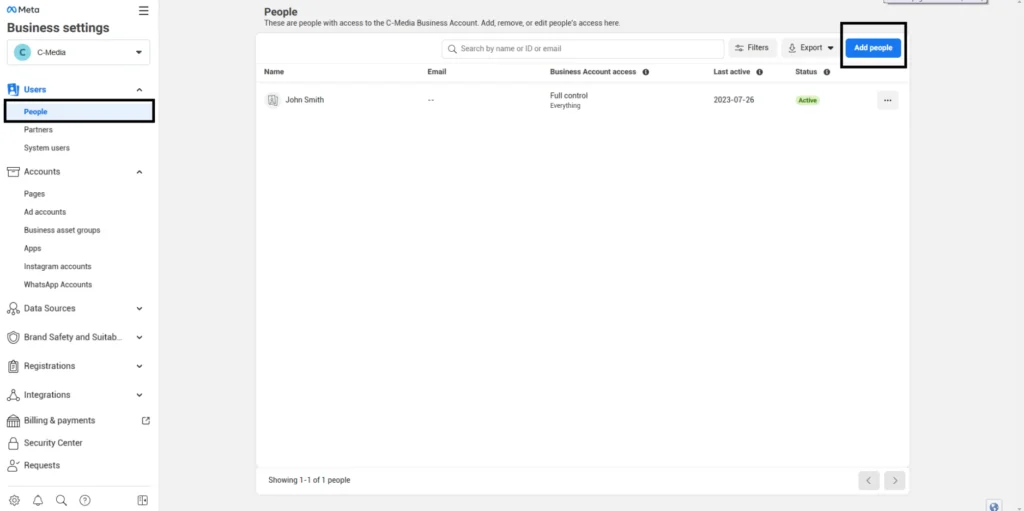
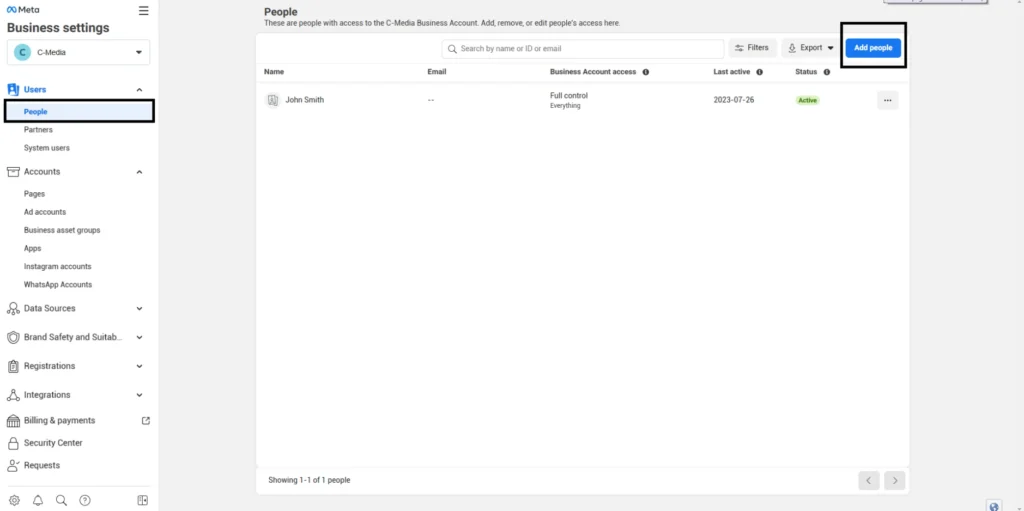
5Go to Business Settings โ People and click "Add People"
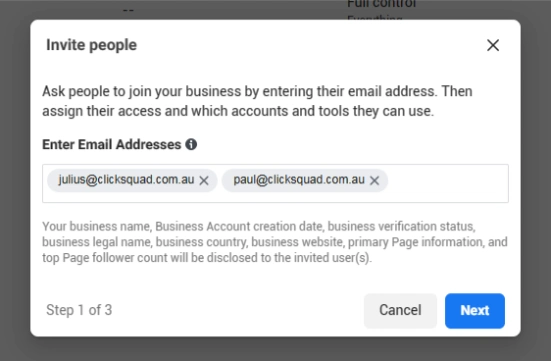
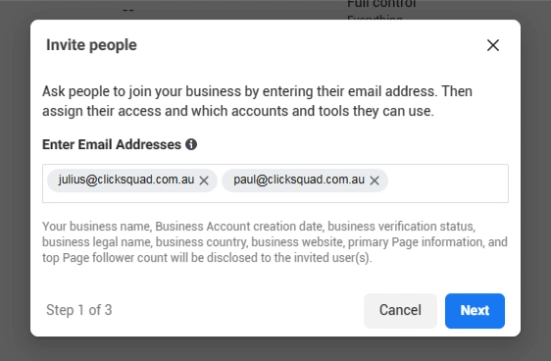
6 Enter both of our email addresses and click "Next"
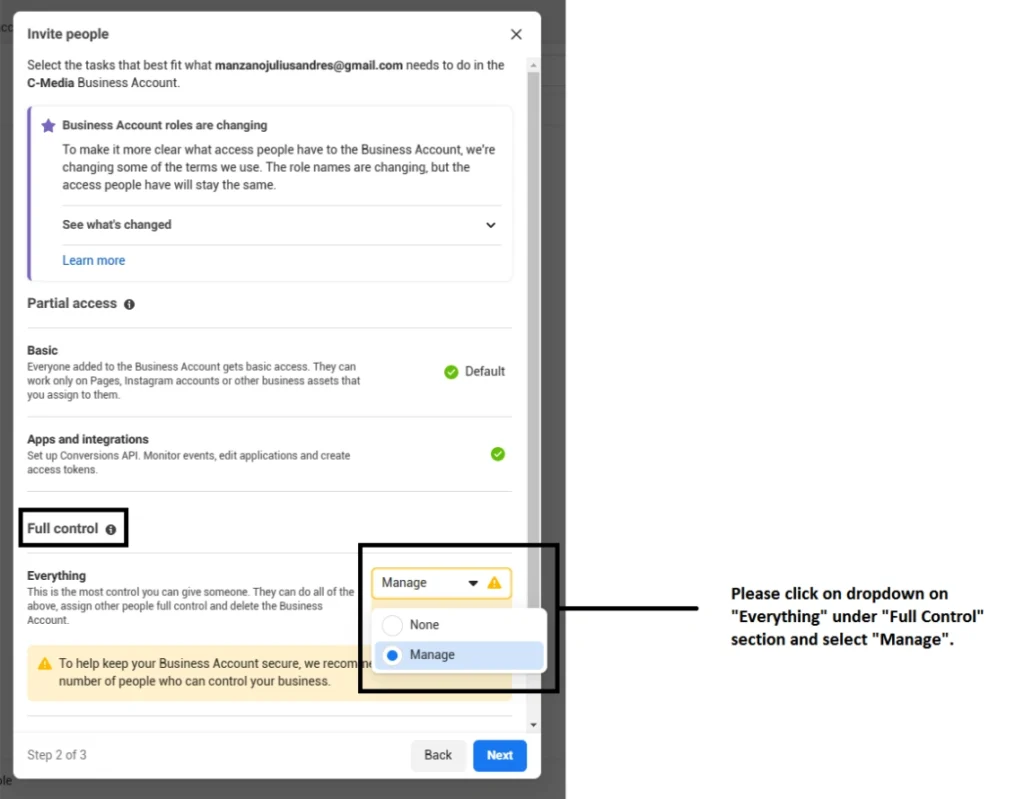
7 Set access to "Full Control โ Manage" and click "Next"
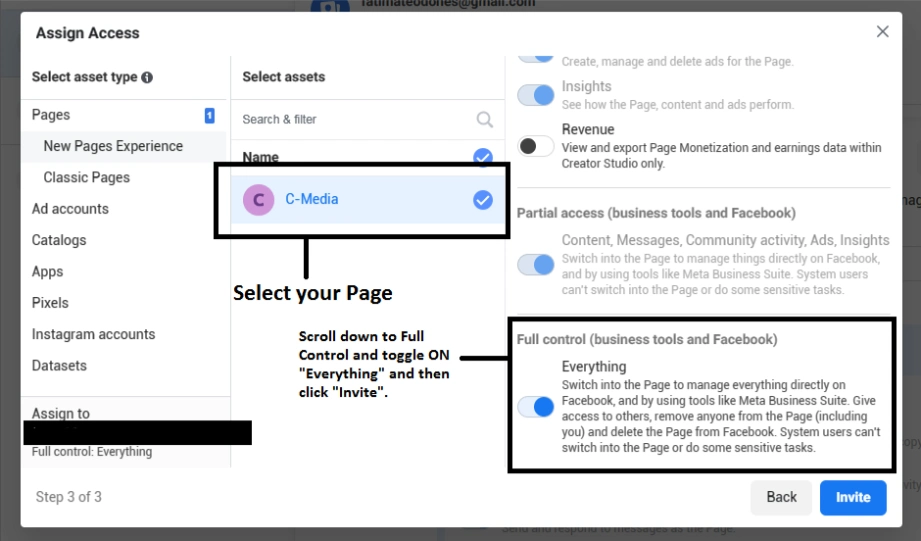
8 Grant page access - toggle on "Everything" and click "Invite"
Meta ยท Option B
Add Us to Your Existing Business Manager
- Estimated time: 2-3 minutes
1 Click the link below to access your Business Manager
2 Go to Business Settings โ People and click "Add People"
3 Invite both of us as Admins by entering our emails and clicking "Next"
Google Ads
Share Your Google Ads Customer ID
- Estimated time: 2-3 minutes
1 Sign in to Google Ads
2 Find your 10-digit Customer ID
3 Share your Customer ID with us
TikTok Ads
Add Click Squad as a Partner in TikTok Business Center
- Estimated time: 3-5 minutes
1 Log in to TikTok Business Center
Sign in using your TikTok for Business credentials. If you don’t have a Business Center account yet, you can also access it via ads.tiktok.com and navigate to the Business Center from there.
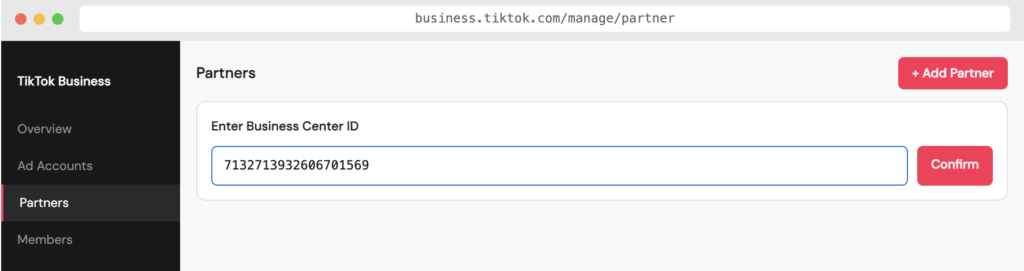
2 Go to the Partners section
3 Add Click Squad as a Partner
Click “Add Partner” and enter our Business Center ID:
Click Squad Business Center ID:
7132713932606701569
Click Confirm to send the partner request.
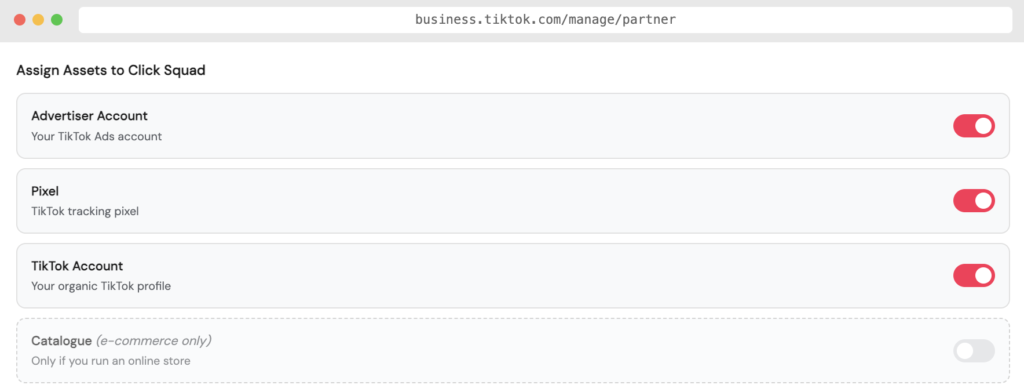
4 Assign assets to Click Squad
- Advertiser Account - your TikTok Ads account
- Pixel - your TikTok tracking pixel
- TikTok Account - your organic TikTok profile
- Catalogue - only if you run an e-commerce store
Pinterest Ads
Add Click Squad as a Partner in Pinterest Business Manager
- Estimated time: 3-5 minutes
1Go to Pinterest Business Manager
Sign in with your Pinterest account. Make sure you’re using a Business account – if you only have a personal account, click Convert to Business on the page.
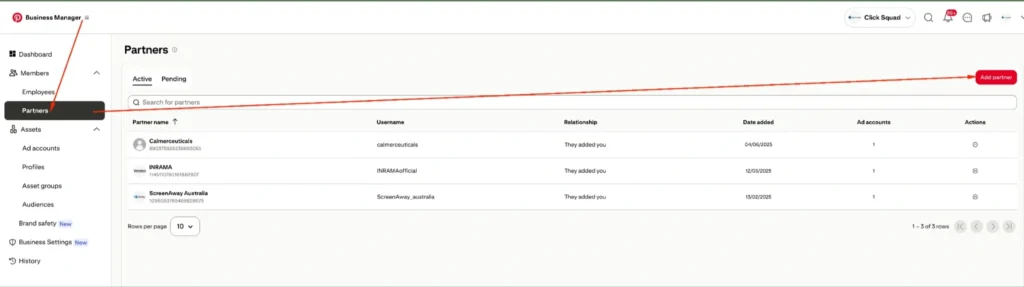
2Navigate to Partners
3 Add Click Squad as a Partner
Click Squad Pinterest Business ID:
592012450925359664
Click Confirm to send the partner request.
4 Assign your Ad Account
LinkedIn Ads
Grant Click Squad Access to Your LinkedIn Campaign Manager
- Estimated time: 5-8 minutes
1Go to Pinterest Business Manager
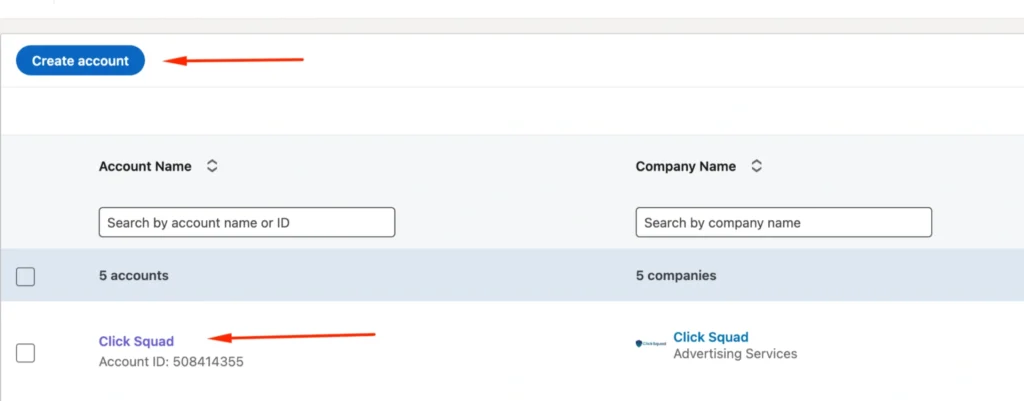
2Open your Campaign Manager account
Click on your account name (e.g. Click Squad) to open it. Make sure the account is linked to your Company Page before proceeding.
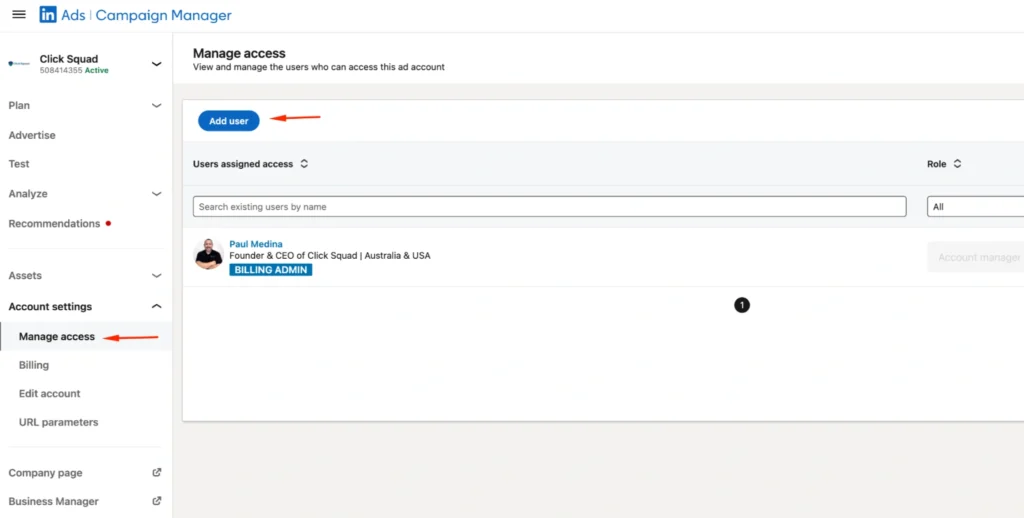
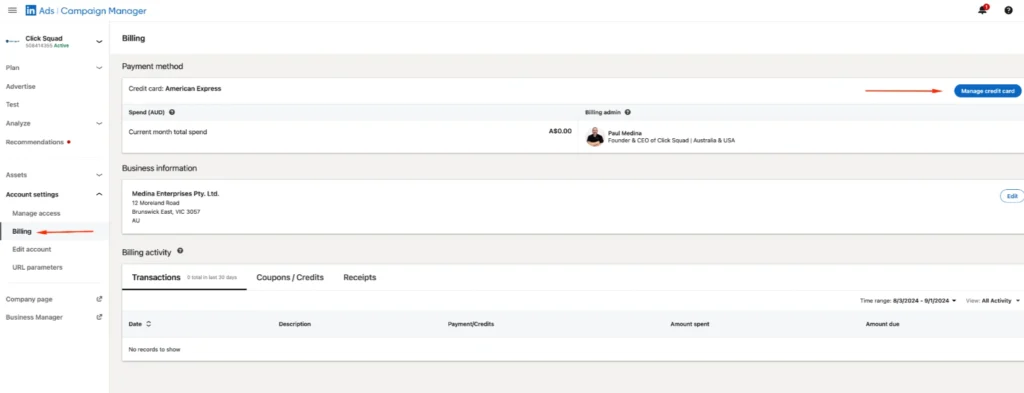
3Go to Manage Access
In the left sidebar, click Account Settings to expand it, then click Manage Access.
4 Add Paul Medina as Account Manager
Search by name or LinkedIn profile URL:
linkedin.com/in/paul-medina-clicksquad
5 Add a Billing Method
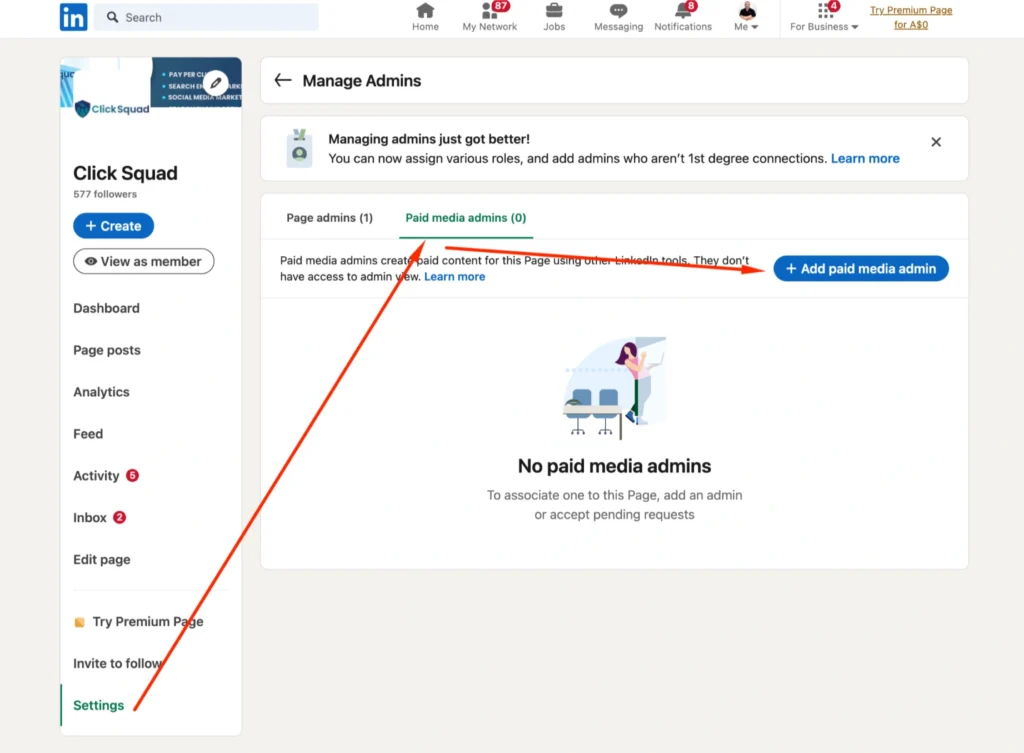
6 Add Paul Medina as Paid Media Admin on your Company Page
Go to your LinkedIn Company Page. Click Settings in the left sidebar, then Manage Admins. Click the Paid Media Admins tab, then click + Add paid media admin and search for Paul Medina.
X (Twitter) Ads
Add Click Squad to Your X Ads Account
- Estimated time: 2-3 minutes
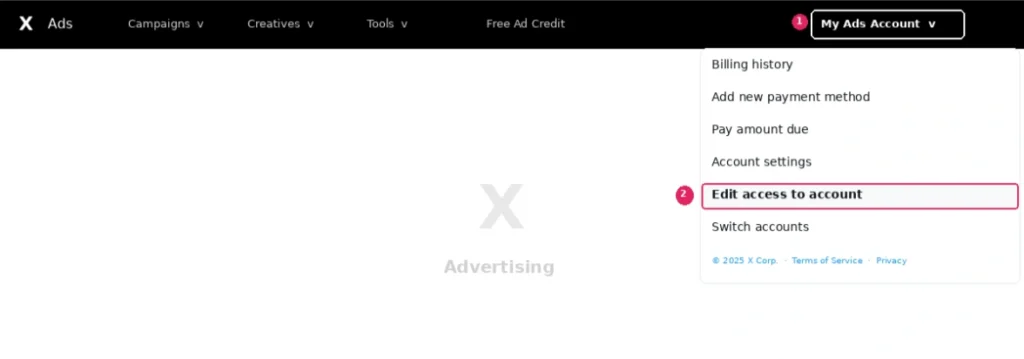
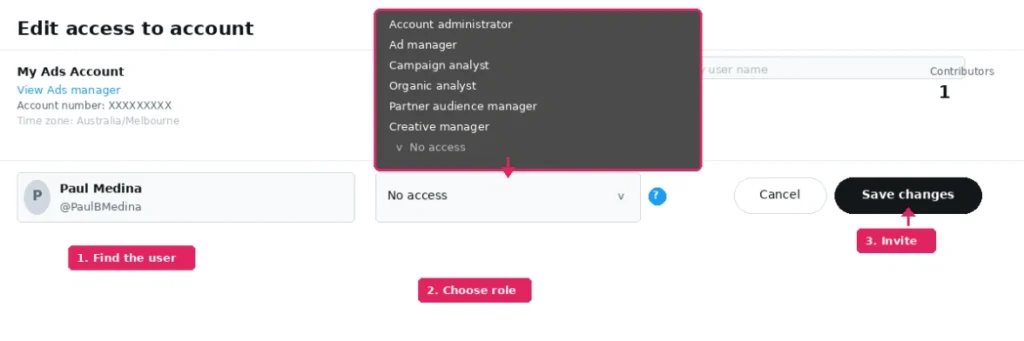
1Log in to X Ads Manager and open "Edit access to account"
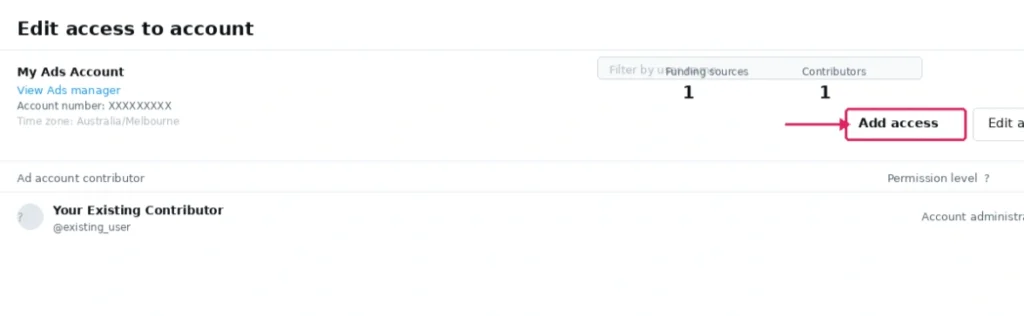
2Click "Add access"
3Find Paul, set role to "Account administrator", and click "Save changes"